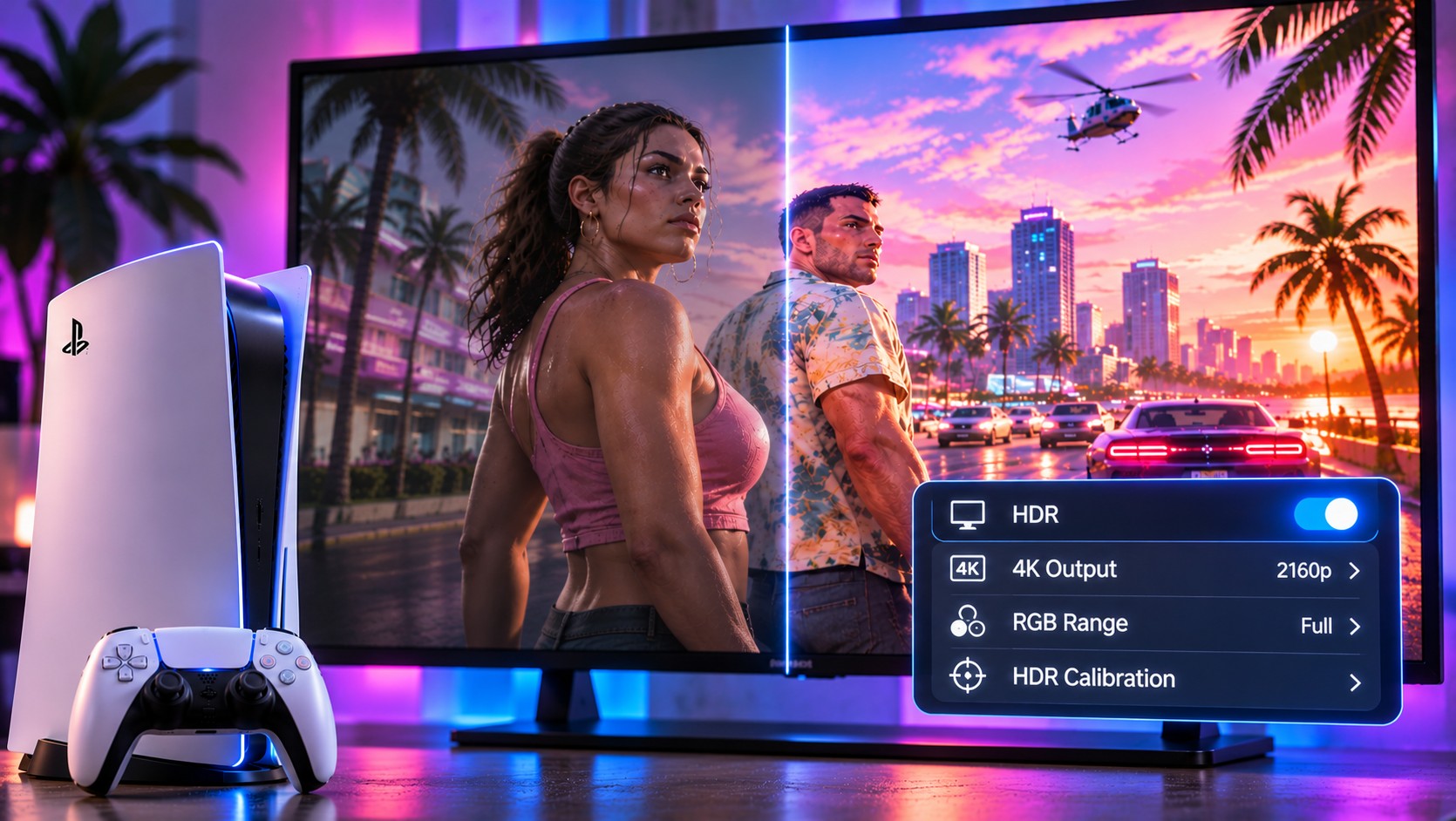
Vice City’s neon lights should not turn faces grey, hide roads in blackness or produce a blurry mess on a 4K television. When GTA 6 looks dark on PS5, the cause may sit somewhere between the console and the display. The best diagnosis starts with the video signal, not a random collection of picture presets.
Identify the symptom before adjusting the picture
| What you see | First area to investigate |
|---|---|
| Dark scenes lose all detail | HDR calibration and black-level settings |
| Colours appear pale | HDR mode and signal range matching |
| Fine textures look smeared | TV processing and sharpening |
| Screen flickers or blanks | HDMI cable, port and output mode |
| Controls feel delayed | Game Mode and motion processing |
A problem affecting the PS5 home screen as well as games is probably not unique to GTA 6. Check a second title or a built-in television menu. This comparison can quickly separate a system-wide output mismatch from an issue confined to one game’s visual design.
Check what the television is actually receiving
On PS5, open Settings, Screen and Video, Video Output. Sony provides information about the connected HDMI device, including supported resolution, VRR and HDR capabilities. Verify that the current output matches the television’s expected mode. Automatic resolution is often the correct starting point.
Four-K output does not guarantee a crisp image
A 4K HDMI signal tells you the dimensions of the output, not necessarily the internal rendering resolution of every game frame. Reconstruction and anti-aliasing affect how fine objects look. Oversharpening on the television can create glowing edges around wires and signs, while aggressive noise reduction can soften texture detail. Reduce unnecessary processing before assuming the console is underpowered.
Calibrate HDR in the proper order
Start by selecting the television’s gaming picture mode and enabling its appropriate HDR input format. Then use the PS5’s Adjust HDR procedure. Follow the on-screen instructions from your normal seating position. If the display offers dynamic tone mapping options, compare them carefully; an aggressive mode may brighten one scene while obscuring the intended contrast in another.
Sony offers an “On When Supported” HDR option. It avoids forcing HDR processing for content designed only for SDR. That distinction is useful when comparing menus, older games and GTA 6. A television should not make every piece of content look identical simply because one global brightness setting has been pushed too high.
Do not copy somebody else’s brightness numbers blindly
Two televisions from the same brand may differ by panel type, firmware, size and room lighting. Use shared settings as a starting point, then judge real shadow detail on your own screen.
When HDMI is responsible for the confusion
Some televisions support full-bandwidth gaming signals on only selected HDMI ports. Others need a specific enhanced input setting enabled. Sony recommends the PS5’s included HDMI cable, and its support documentation explains that adjusting Video Transfer Rate may help with certain flickering problems. That setting can also limit output formats, so change it only to address a genuine issue.
If you use a receiver or soundbar between the console and TV, test a direct HDMI connection. The intermediate device may not pass through the same video capabilities. A direct connection is a diagnostic tool, not necessarily the permanent arrangement you should keep.
The RGB range mismatch that hides in plain sight
Video devices can describe black and white levels using different signal ranges. Normally, automatic negotiation handles this correctly. If a television or intermediate receiver forces the wrong range, dark scenes may become crushed or blacks may look grey. Sony advises changing RGB Range only when a connected HDMI device is not reporting its capabilities properly.
Make one adjustment at a time and revisit a familiar picture after each change. Do not treat an online list of “perfect settings” as a substitute for observing your own panel. When possible, compare the same scene with a neutral picture mode and the manufacturer’s gaming preset.
What if the screen goes black at 120 Hz?
First check the HDMI input and cable. Some displays need enhanced signal modes enabled, and certain receiver chains cannot pass through every format. PlayStation allows users to adjust 120 Hz Output and Video Transfer Rate when supported setups show problems. Reducing an output mode can help isolate a signal-handling issue, although it may limit other games that use higher refresh rates.
Keep picture quality separate from frame rate
Rockstar targets 30 FPS on PS5 and PS5 Pro. Motion blur associated with that presentation should not be confused with a defective HDR setting. A 120 Hz television cannot create genuine additional game frames, and motion interpolation can increase control latency. Prioritise the low-latency display path.
If the screen still looks wrong after a careful calibration, document the precise symptom, television model and output information. A reproducible problem is easier to solve than a vague report that the graphics look bad. Good image quality comes from the game and the display working together, with neither trying to correct what the other has already done.