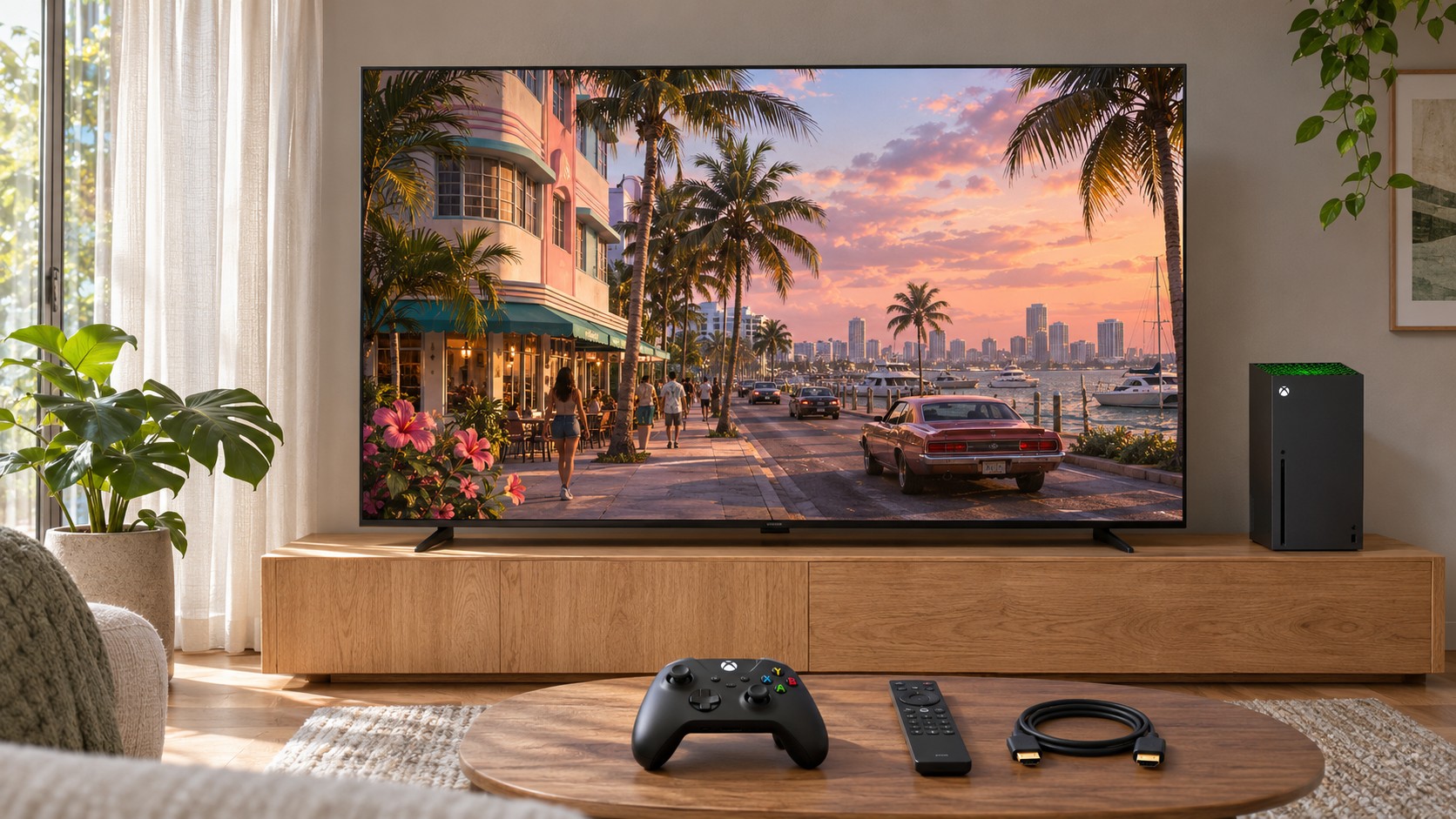
The right screen should solve a visible problem in your setup, rather than add another badge to the box.
Before buying a television for GTA 6, sit where you normally play. Notice the distance, the light from nearby windows and whether subtitles are comfortable to read. Those details will shape your experience long after a retailer’s specification card has been forgotten.
A sensible GTA 6 Xbox TV upgrade starts with the picture you want to improve. Perhaps dark scenes disappear into reflections. Perhaps the existing screen feels slow when you turn. Each problem points toward a different feature.
Priority one: comfortable visibility
A larger screen can make distant details easier to inspect, but size should match the available space. Measure the furniture and viewing position. Check whether the stand leaves room for the console and whether a soundbar would cover part of the picture.
Brightness matters most in context. A bright room makes reflections harder to ignore. A darker room exposes weak blacks and distracting illumination around bright objects. Neither situation can be assessed properly from a showroom playing vivid demonstration footage.
Ask what HDR looks like, not whether it exists
HDR performance is more than accepting an HDR signal. VESA’s DisplayHDR criteria separately assess brightness, black levels and colour performance. The framework illustrates why two HDR displays can produce very different pictures.
For a monitor, a verified certification tier gives more information than a generic HDR claim. For a television, inspect the manufacturer’s specifications and credible measurements of the exact model. Similar names can conceal different panels or features.
Priority two: the connection must support the promise
Microsoft’s Xbox display guide explains that supported resolutions and refresh rates can vary between HDMI ports. Some monitors reserve their highest refresh rate for DisplayPort, which does not establish the same capability through Xbox’s HDMI connection.
Check the manual before paying. Look for the supported HDMI resolution, refresh rate and gaming features together. If you use a receiver or switch, include that device in the check. Every part of the route must carry the selected signal.
A practical connection checklist
- Identify the HDMI port intended for the resolution and refresh rate you need.
- Use a suitable cable and the display’s required enhanced HDMI setting.
- Inspect Xbox’s 4K TV details page after connecting the equipment.
- Test a direct console connection if an intermediary device causes problems.
Keep the original cable and a record of the working settings. That makes later troubleshooting easier than rebuilding the entire setup from memory.
Priority three: understand motion before buying 120Hz
A display’s refresh rate describes how often it can update. The game’s frame rate describes how many new pictures the console produces. A 120Hz screen does not make GTA 6 render 120 unique frames every second.
Think of the display as a delivery schedule. More delivery slots help when fresh frames are available. They do not create additional game simulation or graphics work. Buy higher refresh support for the games and uses that will benefit from it.
Rockstar’s published console target is 30 FPS. That makes picture quality and responsive processing sensible GTA 6 priorities. Higher refresh support may still matter for your other games, but it should have an identifiable use.
Also check the return policy before buying a display you cannot inspect properly. Ask whether the exact size you selected has the same features as the reviewed model. A screen should fit your whole routine, including daytime play, evening films and the devices sharing its HDMI inputs. Write those needs down before comparing offers.
Where VRR and Game Mode fit
HDMI’s explanation of gaming features describes Variable Refresh Rate as a way to match display updates to arriving frames. Auto Low Latency Mode tells a compatible screen to use its gaming mode.
VRR support can improve presentation within the equipment’s supported operating range. It cannot repair every stall or increase the underlying frame rate. Check the range and compatibility for the exact screen rather than assuming every implementation behaves identically.
Game Mode should be part of your initial setup. Then judge responsiveness with a familiar action, such as a gentle camera movement. Avoid choosing a cinematic processing preset simply because its colours appear more striking.
Make the first evening a setup session
Update the display using the manufacturer’s instructions. Confirm the Xbox reports the capabilities you expected, then run the available picture calibration tools. Treat copied settings from another room as a starting point, because lighting and panel variation affect the result.
Finally, play from your usual seat. Check readable text, comfortable brightness and clear movement. If the existing television already provides those things, a new purchase needs a more specific justification than enthusiasm for GTA 6.
Test subtitles against bright backgrounds and dark scenes before finalising settings.
The best display choice is the one whose benefits remain obvious during an ordinary evening of play, after the demonstration video ends and the specifications disappear.