
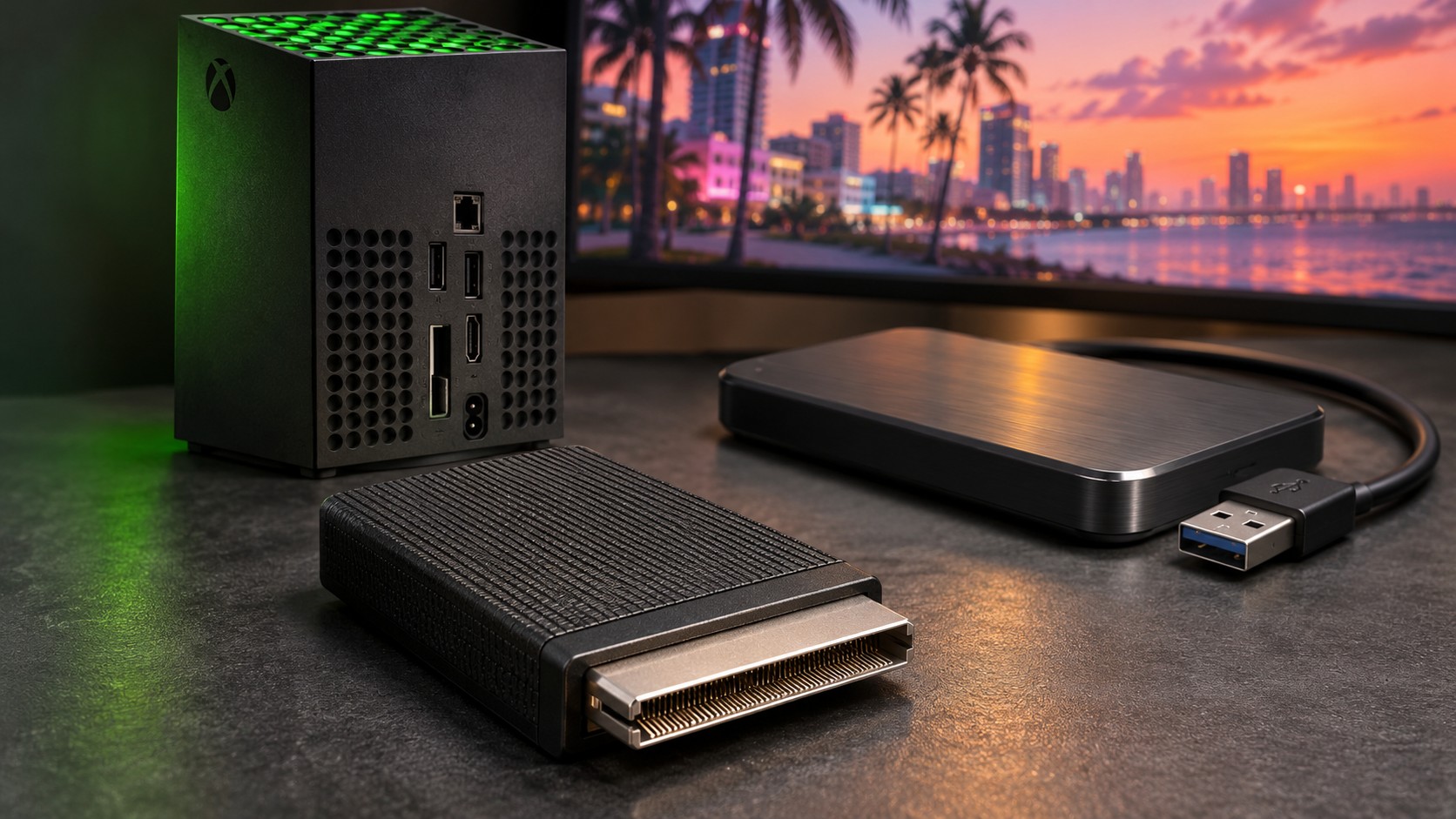
Capacity and compatibility are different purchases, and confusing them can leave a new drive unable to run the game.
The expensive GTA 6 Xbox storage mistake is buying a large drive and assuming every gigabyte works the same way. A USB hard drive can provide useful room for a library. That does not make it equivalent to the console’s internal SSD for running a demanding current-generation title.
Start with the storage screen on the console you actually use. Check the game’s current installed size, the destination drive and the available space. Figures circulating before launch can become outdated after updates, and advertised drive capacity is not the same as free room today.
Step one: identify what each drive can do
Xbox’s storage explanation distinguishes USB storage from the dedicated expansion connection. USB drives can store games for transfer. Compatible Storage Expansion Cards are designed to provide the same gameplay performance as the internal SSD.
The internal SSD is the first destination
If there is enough room, keep GTA 6 on the internal drive. This avoids an additional purchase and removes uncertainty about whether an external product supports native Series X|S gameplay. The useful question is what else needs to remain installed alongside it.
An expansion card adds playable capacity
Microsoft lists Storage Expansion Card support for Series X, while its Series S range uses the same expansion category. Check the product’s explicit Xbox Series X|S compatibility. A generic SSD description is not sufficient.
Extra space does not turn the console into a faster hardware model. Buying a larger compatible card should solve a capacity problem. It should not be justified by promises of higher GTA 6 FPS or additional graphics features.
A USB drive works as a library archive
For a player with limited broadband, an archive can be valuable. Move a game you are not currently playing to suitable external storage, then bring it back when needed. Transfers take time, but they can avoid repeatedly downloading a large installation.
Do not assume that a USB SSD escapes the compatibility rule because it is faster than a mechanical hard drive. The connection and supported storage path matter alongside the drive’s advertised speed.
Step two: plan the space you will actually use
Make a short list of games that must stay ready. Include titles used by other people in the household. Then compare their installed sizes with the space available after GTA 6 is installed. This produces a practical requirement instead of a guess based on collection size.
Update headroom deserves attention, too. Avoid organising the drive so tightly that any additional requirement immediately forces another decision. The amount needed can vary, so follow the console’s installation prompts rather than applying an invented universal percentage.
Reserve your fastest storage for games that require it or that you play frequently. An older compatible title can be a better archive candidate than the game you launch every evening. Convenience has value, but it should be attached to a real habit.
Step three: check the package before paying
Microsoft’s Series S listing offers both 512GB and 1TB configurations. Owners comparing consoles should include any likely expansion purchase in the total. The cheapest console alone may not be the cheapest setup for a large permanent library.
For a drive purchase, read the exact model name and connector description. Similar-looking packaging can describe different products. Check the return terms and current local price, then buy the capacity that addresses the measured shortfall.
A used drive requires the same compatibility check. Its low price does not establish that it belongs to the correct storage category. Nor should a seller’s statement that it works with Xbox be interpreted as confirmation that it can run every Series X|S game directly.
Step four: move games without confusing installation and saves
Game files and saved progress are different things. When managing space, read the selected action carefully. Moving or uninstalling an installation is not a reason to choose an option that deletes saved data everywhere.
Let a transfer finish before disconnecting its drive. Launch the game from the intended destination and confirm that the installation is recognised. A deliberate check here is more useful than buying another accessory after an avoidable misunderstanding.
Keep a note of which games live on each device, particularly when several drives are connected. Clear naming helps prevent an unwanted move or format. If a console asks to erase a newly connected drive, stop and confirm that no important files on it need to be preserved.
The right storage plan leaves the games you use ready, gives updates room and preserves a clear path back to archived titles.