
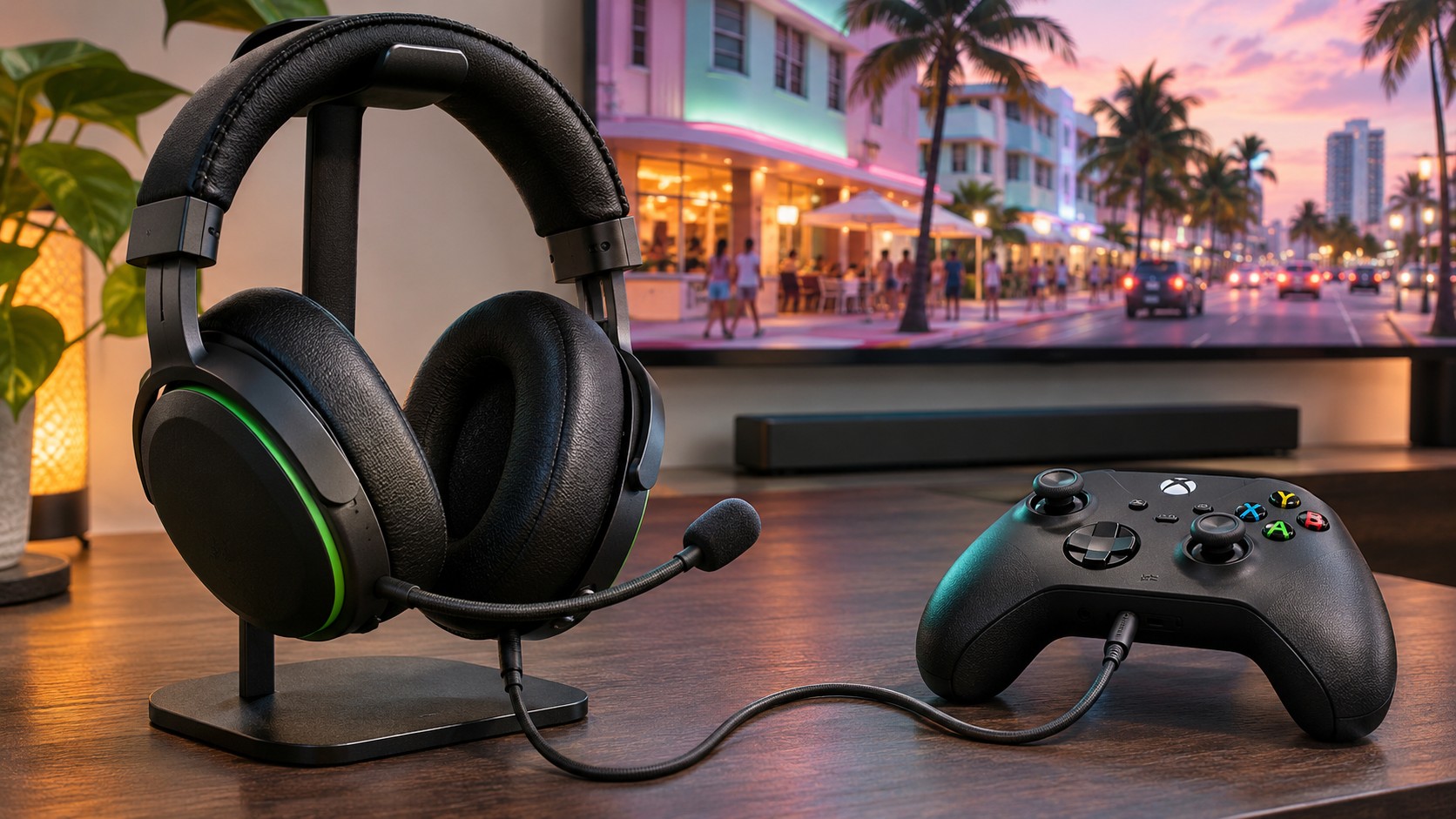
Spatial audio is useful when the signal path and listening setup let its details survive.
A convincing city needs more than a skyline. Sound tells the player whether something is nearby, behind them or hidden beyond the camera. Yet a busy soundtrack can become an indistinct rumble when the headset balance or speaker configuration is wrong.
GTA 6 Xbox audio has a concrete starting point: the game’s Xbox listing includes Spatial Sound, Dolby Atmos and DTS:X. Getting value from those capabilities still depends on how your console sends audio to your equipment.
Listen for separation before adding impact
Start with a familiar scene and a moderate, consistent volume. Concentrate on whether speech remains intelligible and whether nearby effects can be distinguished from music. A setup that makes every sound equally imposing can obscure useful information.
Strong bass may make an engine feel substantial, but a large bass boost is not a universal improvement. Compare it with a flatter setting. Keep the option that preserves conversation and smaller environmental sounds without making you reach for the volume control.
This is an editorial judgement rather than a prescribed equaliser curve. Rooms, headphone fit and personal preferences differ. The aim is a stable balance that works during ordinary play, not a brief demonstration that sounds impressive.
Make one change audible
Use the same scene when comparing settings. Changing the headset, audio format and game mix together creates too many variables. Note the original configuration, alter one element and return to the scene before deciding.
Headphones: choose the output deliberately
Microsoft’s spatial sound documentation explains that Xbox can render spatial audio through Windows Sonic for Headphones, Dolby Atmos for Headphones or DTS Headphone:X. These options use the platform’s audio processing; the headset does not need a collection of physical speakers around each ear.
Open the console’s General settings and find Volume & audio output. Inspect the headset format and choose an option supported by your setup. Make sure you are changing the headphone output rather than the HDMI speaker format.
- Stereo baseline
- Use a straightforward stereo setting as a comparison when diagnosing an unusual or hollow presentation.
- Spatial listening
- Compare direction and separation using a supported spatial format, while keeping volume approximately consistent.
- Processing layers
- Check the headset’s own enhancement options. Avoid changing several surround effects together, because the resulting difference becomes difficult to explain.
Dolby’s Xbox guidance directs players to the Dolby Access app to configure supported equipment and try Atmos for Headphones. Check the app’s current access terms before assuming a trial, purchase or bundled entitlement applies to your account.
Speakers: follow the signal all the way through
A console connected to a television, which then passes sound to a soundbar, has more than one potential configuration point. Inspect the manuals for the television and audio device. Confirm the connection and accepted formats before selecting the most elaborate option.
If the equipment supports only stereo, choose a matching output. Sending an incompatible multichannel format is an avoidable complication. If a supported surround format produces missing dialogue or inconsistent sound, compare a simpler output to isolate the problem.
Room layout can outweigh a menu change
Keep speakers unobstructed and position the listening seat sensibly relative to them. A soundbar pushed behind the television or blocked by objects deserves attention before another software adjustment. Follow its manufacturer’s placement guidance.
With headphones, check fit and the connection instead. A partly inserted plug, a damaged cable or an uneven earcup seal can undermine the comparison. Try another known working connection where the equipment permits one.
When the mix still feels wrong
Inspect any audio mix controls available in your installed game. If dialogue disappears under music, adjust the relevant balance in small increments and replay the same moment. Do not assume another player’s numerical settings will transfer cleanly to your room.
Also separate game audio from party chat. A chat balance tilted heavily toward conversation can make the game seem unusually quiet without indicating a problem with GTA 6’s soundtrack.
Diagnose silence by its boundaries
If sound disappears, identify what still works. Can you hear the console interface? Does another game play through the same headset? Does GTA 6 produce sound through the television after you switch outputs? Each comparison narrows the problem without requiring an immediate reinstall.
Write down whether the fault affects everything, one output or a particular scene. A missing voice in one moment suggests a different investigation from complete silence across the console. Check mute controls and output selection before treating either symptom as evidence of a broken soundtrack.
When reporting the issue, include the headset or speaker model, connection method and selected audio format. That information makes the report reproducible for support staff.
The worthwhile result is easy to describe: conversation remains clear, directional cues feel useful and loud moments retain their impact without overwhelming everything else. Keep the setting that delivers that balance consistently.